Bitrix24 Not Logging Activities
Check OAuth Connection
In the SIMtrix dashboard, go to Settings and look at your Bitrix24 portal connection status. If it shows "Expired" or "Error", click "Reconnect" to refresh the OAuth authorization. Test the connection after reconnecting.
Verify App Installation in Bitrix24
In Bitrix24, go to Market > My Apps. Confirm SIMtrix is installed and active. If it was accidentally removed, reinstall it and reauthorize.
Check Phone Number Matching
Bitrix24 matches call and SMS activities to contacts based on phone numbers. If the phone number format in the call does not match the format stored in Bitrix24, the activity may not be linked to the correct contact. SIMtrix normalizes numbers, but edge cases can occur with unusual formats.
Check Bitrix24 REST API Limits
Bitrix24 has REST API rate limits (varies by plan). If your account is making many API calls from other apps as well, SIMtrix requests may be rate-limited. This is visible in the SIMtrix dashboard logs as "429 Too Many Requests" errors. Wait a few minutes and retry.
Review Dashboard Logs
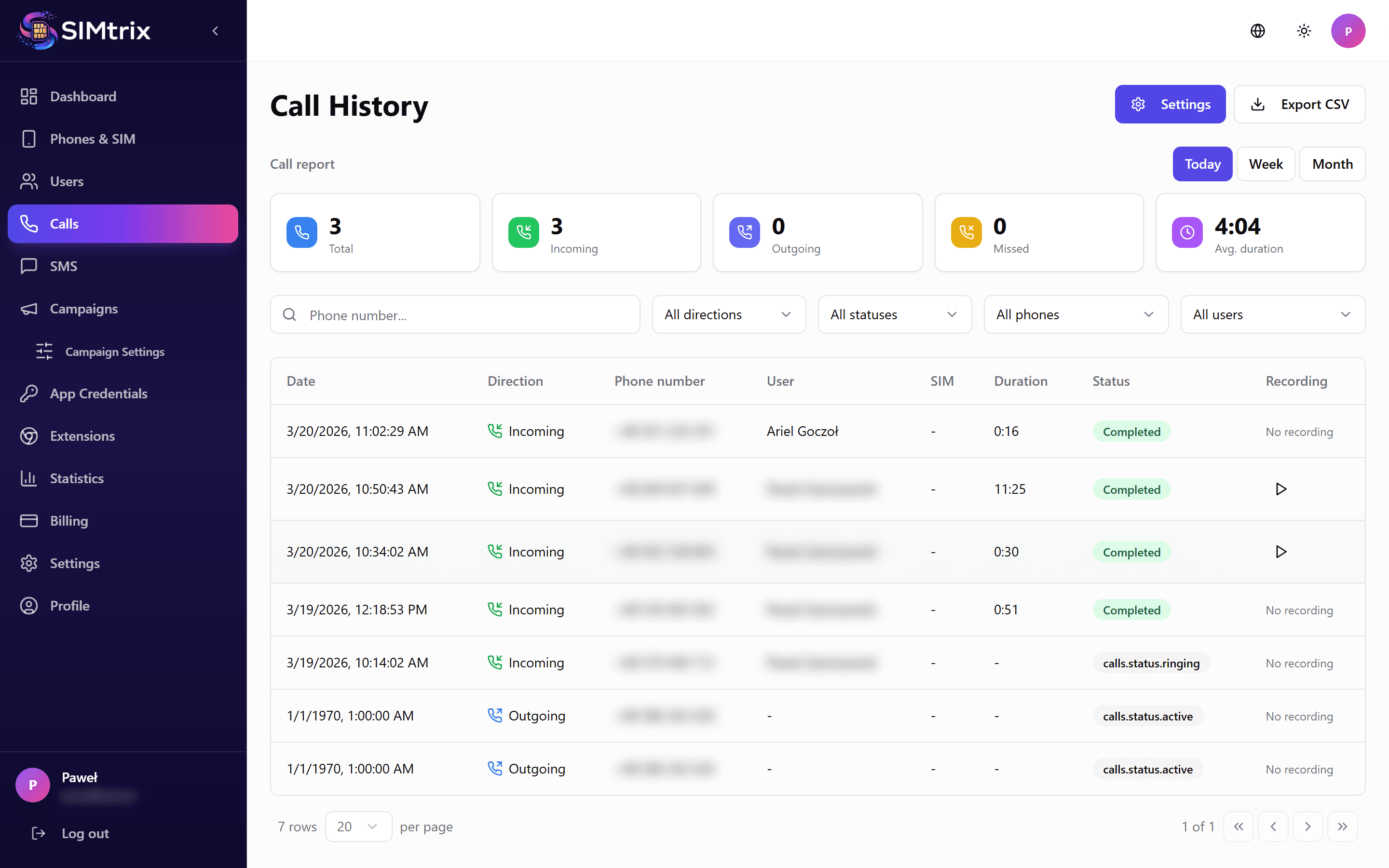
Check the Calls and SMS sections in the SIMtrix dashboard. Each entry shows whether it was successfully logged in Bitrix24. Entries with a "CRM Error" status include an error message explaining what went wrong.