Test Your Integration
Prerequisites
- Bitrix24 portal connected to SIMtrix
- Android phone online with SIM assigned to a user
- SIMtrix set as default telephony provider in Bitrix24
Verify all components are connected
Before testing, ensure: (1) Your Bitrix24 portal shows "Connected" in SIMtrix Settings. (2) At least one Android phone is online (green indicator in Phones section). (3) A Bitrix24 user is assigned to the phone. (4) SIMtrix is set as the default telephony provider in Bitrix24.
Make a test outbound call
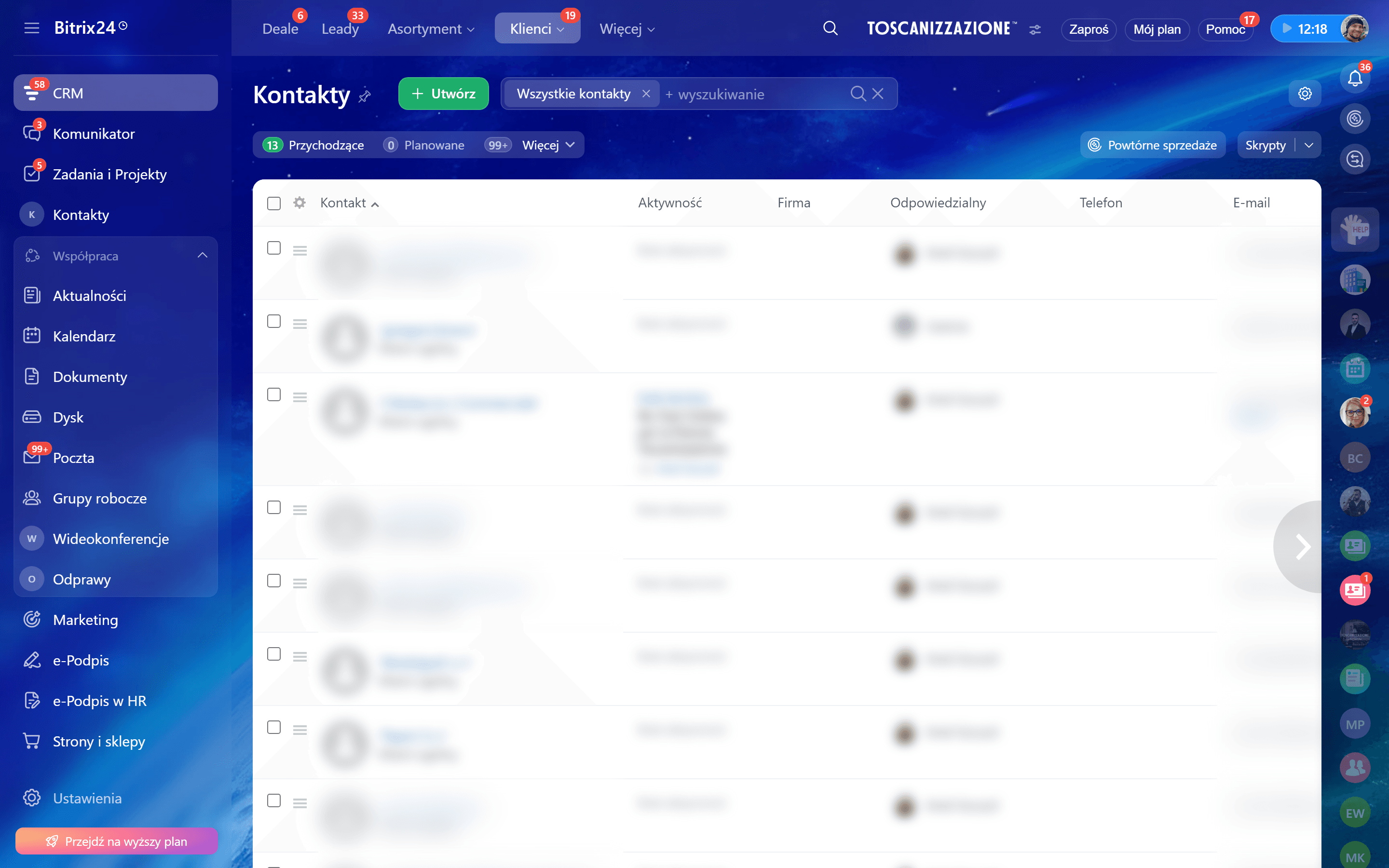
In Bitrix24, open any contact with a phone number. Click the phone number to initiate a call. Your Android phone should ring or start dialing within 1-2 seconds. Let the call connect briefly, then hang up.
Use a phone number you control so you can verify the call is received on the other end.
Verify call logging
After hanging up, check the contact card in Bitrix24. A new call activity should appear on the timeline showing the call direction, duration, and timestamp. If call recording was enabled, the recording attachment should appear shortly after.
Send a test SMS
From the same contact card in Bitrix24, send a test SMS. The message should be delivered within a few seconds via your phone SIM card. Check the contact timeline — the SMS should appear as a logged activity.
Test incoming call/SMS
Call or text the SIM card number from another phone. After the call/SMS, check Bitrix24 — the incoming interaction should be logged on the matching contact timeline. If the number is not in your CRM, check if a new lead was created (if that feature is enabled).
Check the dashboard logs
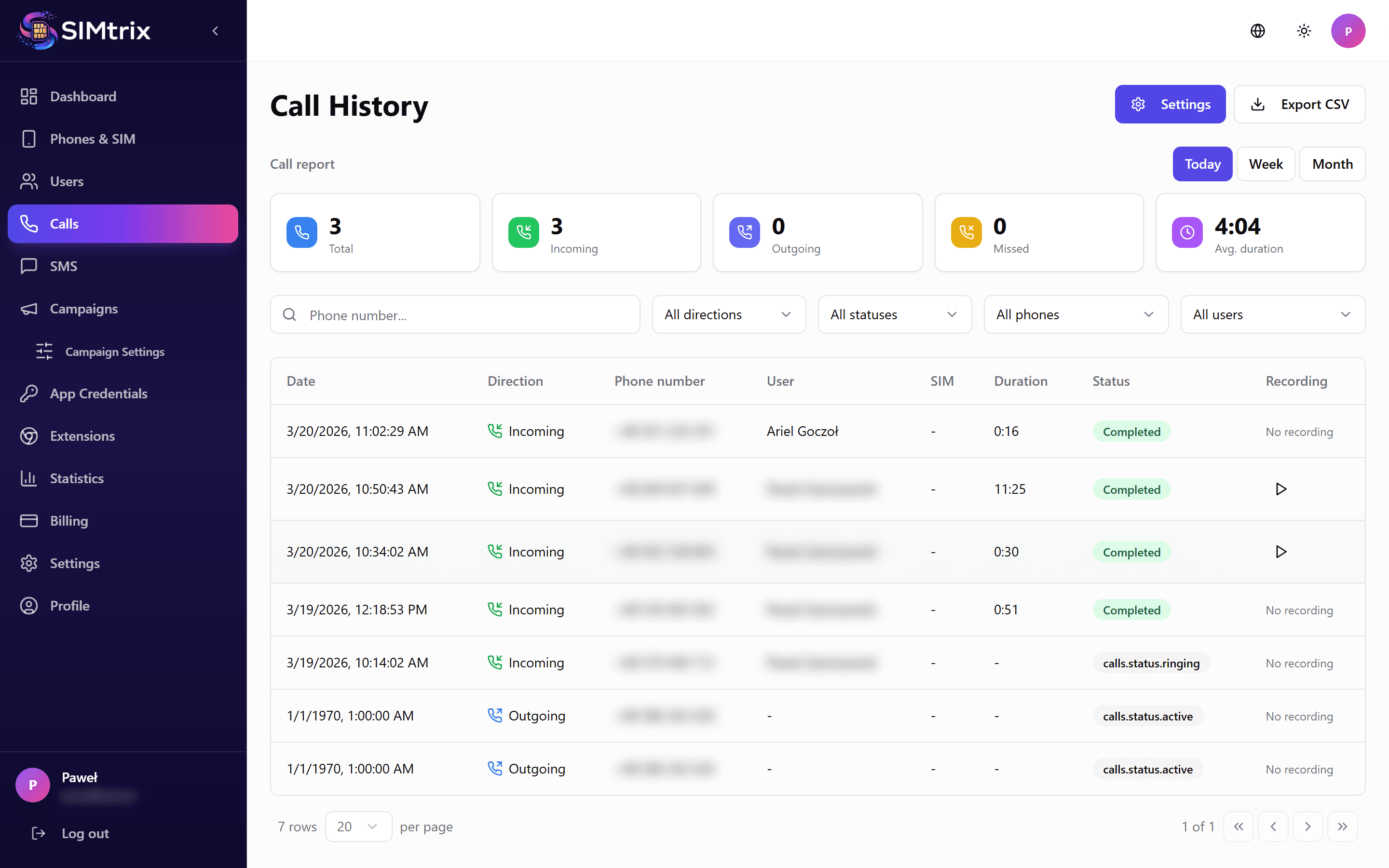
In your SIMtrix dashboard, navigate to Calls and SMS sections. Your test interactions should appear in the logs with all relevant details: direction, phone number, duration, status, and CRM logging confirmation.