

Connect Your Bitrix24 Portal
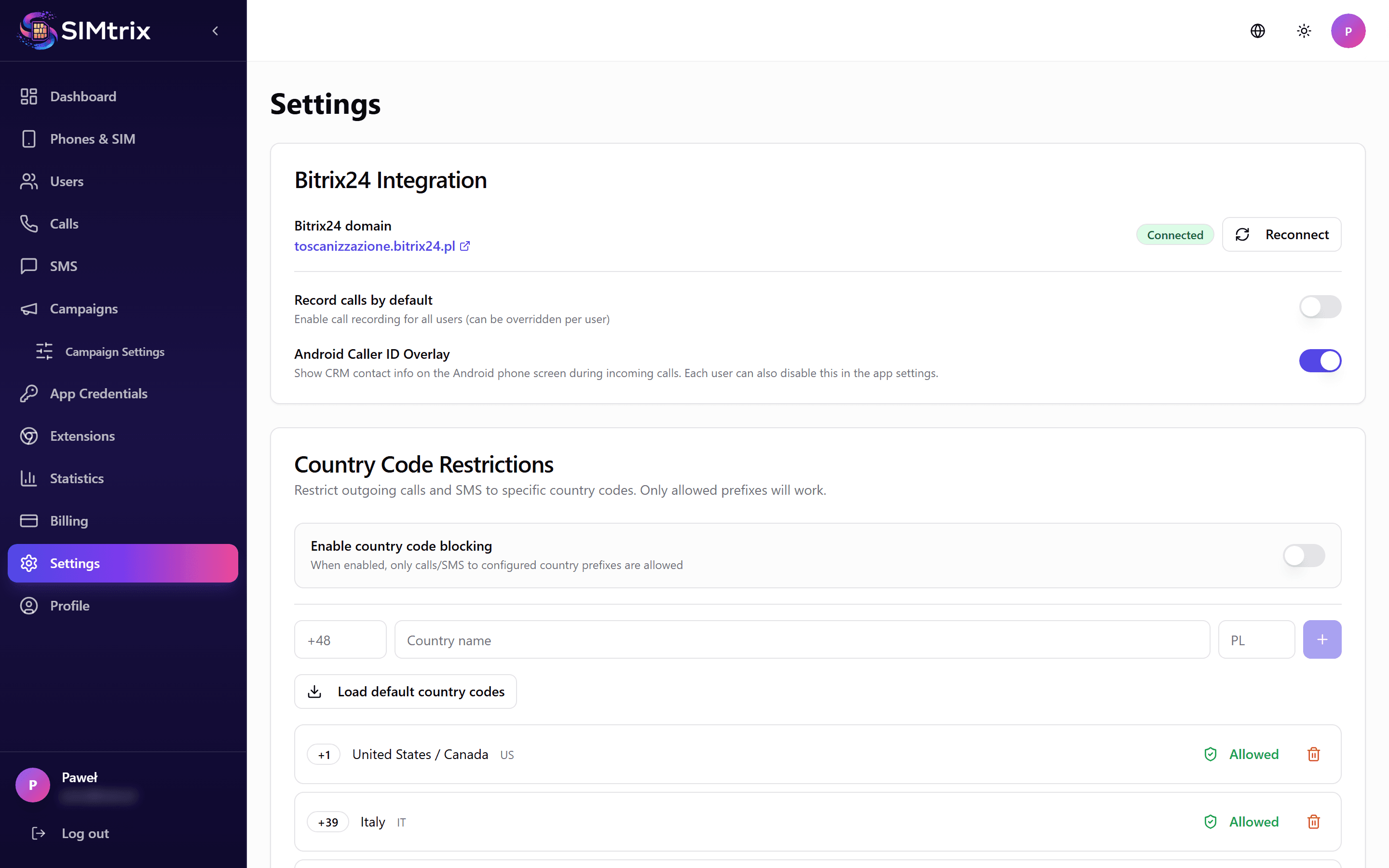
Navigate to Settings
In your SIMtrix dashboard, click "Settings" in the left sidebar. This page shows your Bitrix24 portal connections.
Verify the OAuth connection
If you installed SIMtrix from the Bitrix24 Marketplace, your portal should already be connected. You will see your portal URL (e.g., your-company.bitrix24.com) with a "Connected" status.
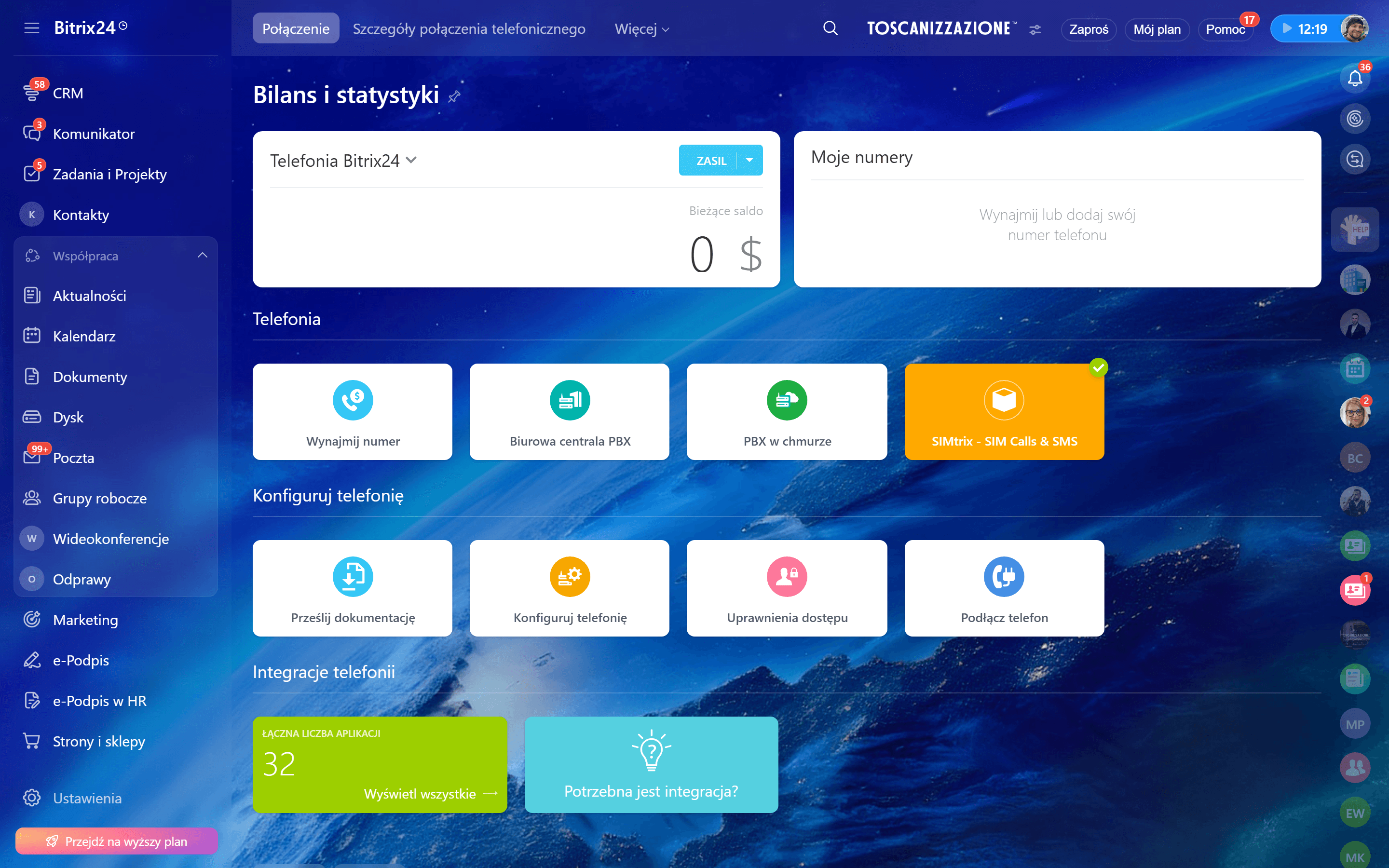
Configure telephony provider
In your Bitrix24 portal, go to Telephony > Settings. Under "Default outbound call application" select SIMtrix. This ensures that clicking phone numbers in CRM uses SIMtrix to initiate calls.
If you do not set SIMtrix as the default telephony provider, calls may be routed through a different application or Bitrix24 built-in telephony.
Test the connection
From the SIMtrix Settings page, click "Test Connection". This verifies that the OAuth tokens are valid and that SIMtrix can communicate with your Bitrix24 portal API. A green checkmark confirms everything is working.