Quick Start Guide
Create your SIMtrix account
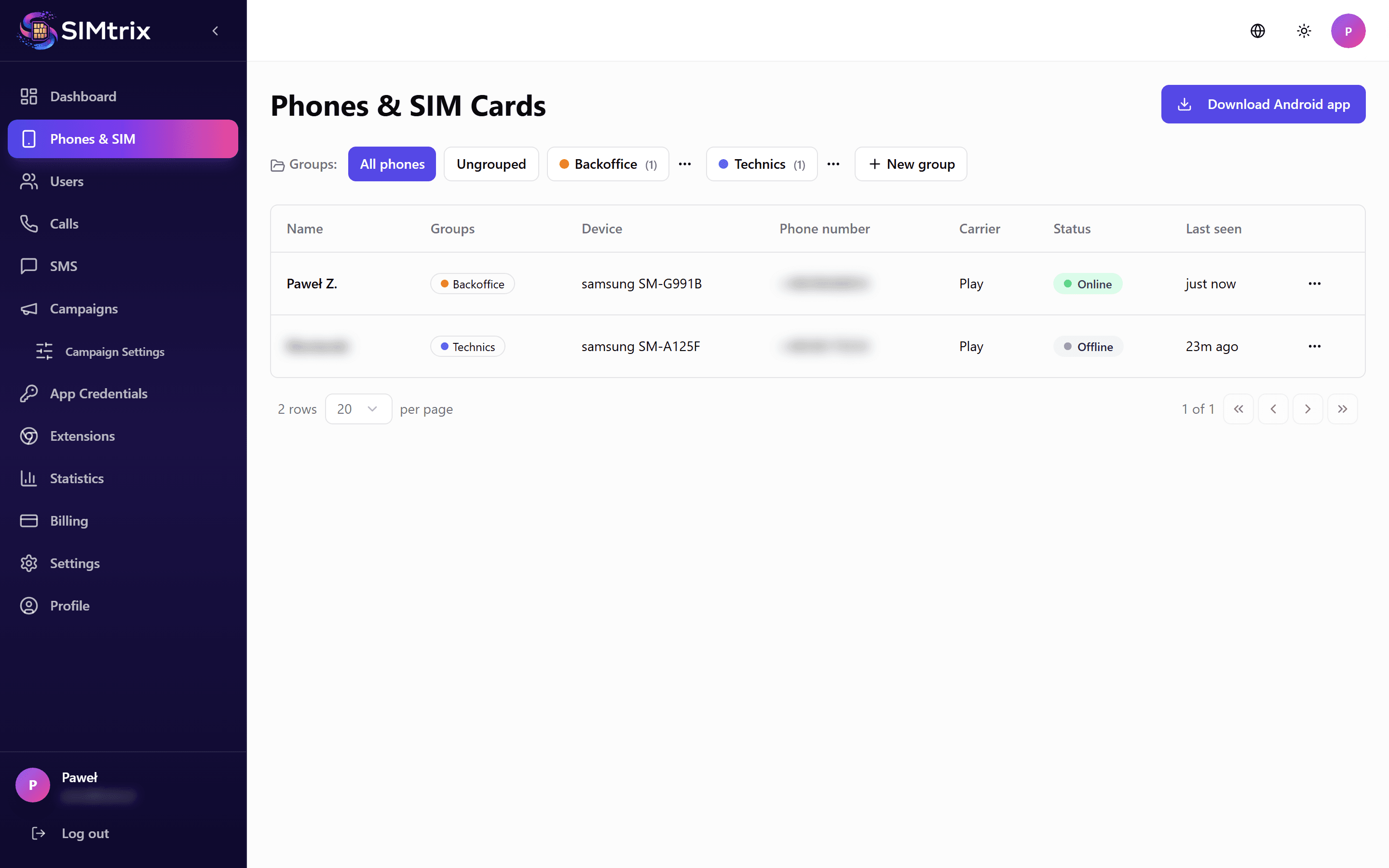
Go to simtrix.app and click "Get Started". Enter your email address and choose a password. You will receive a verification email — click the link inside to activate your account.
Use the same email you use for Bitrix24 administration for easier management.
Install SIMtrix in Bitrix24
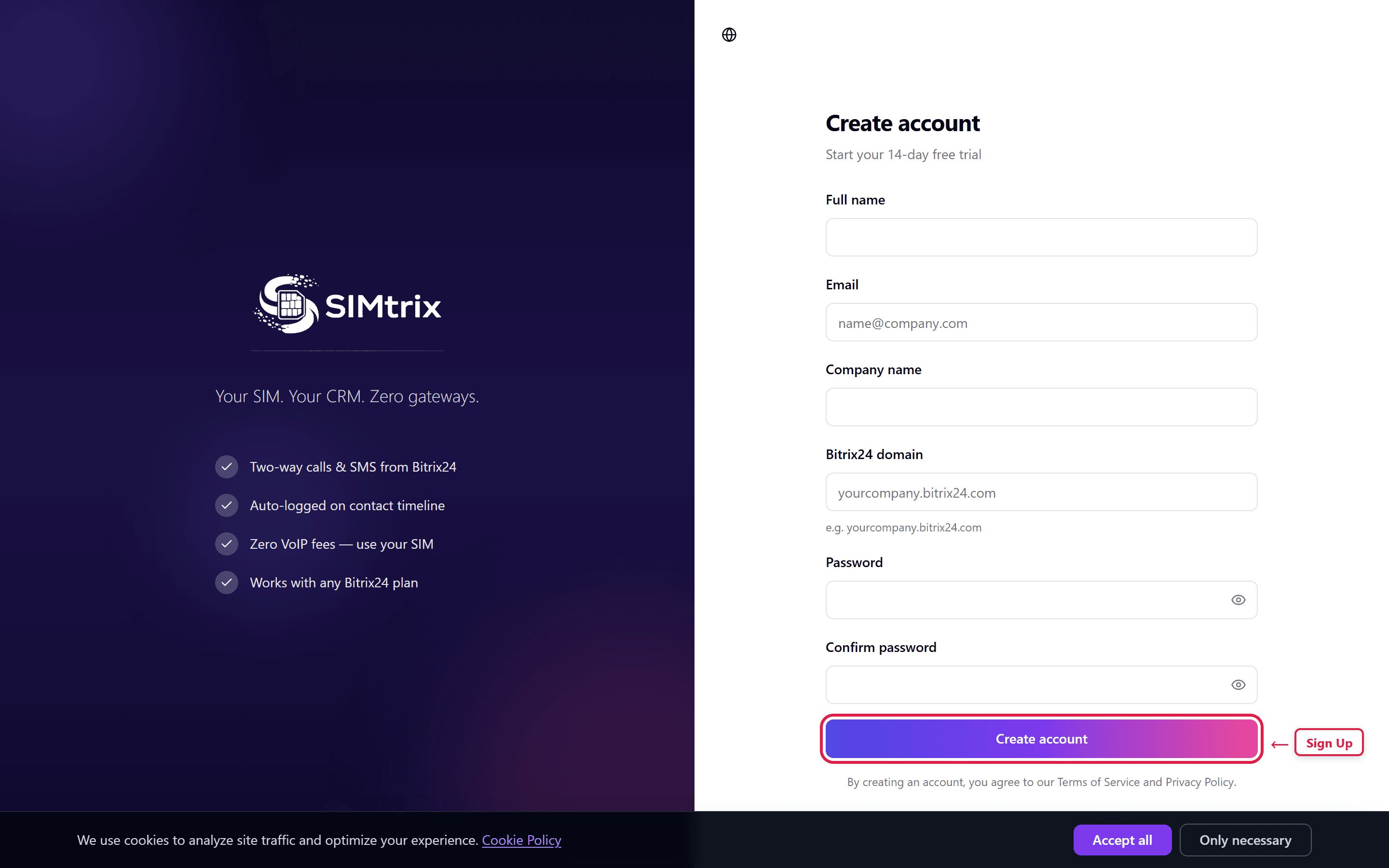
Open your Bitrix24 portal and navigate to Market. Search for "SIMtrix" and click Install. Authorize the application when prompted — this grants SIMtrix the permissions it needs to register calls, log SMS messages, and access your contacts.
You need Bitrix24 administrator rights to install marketplace applications.
Set up the Android app
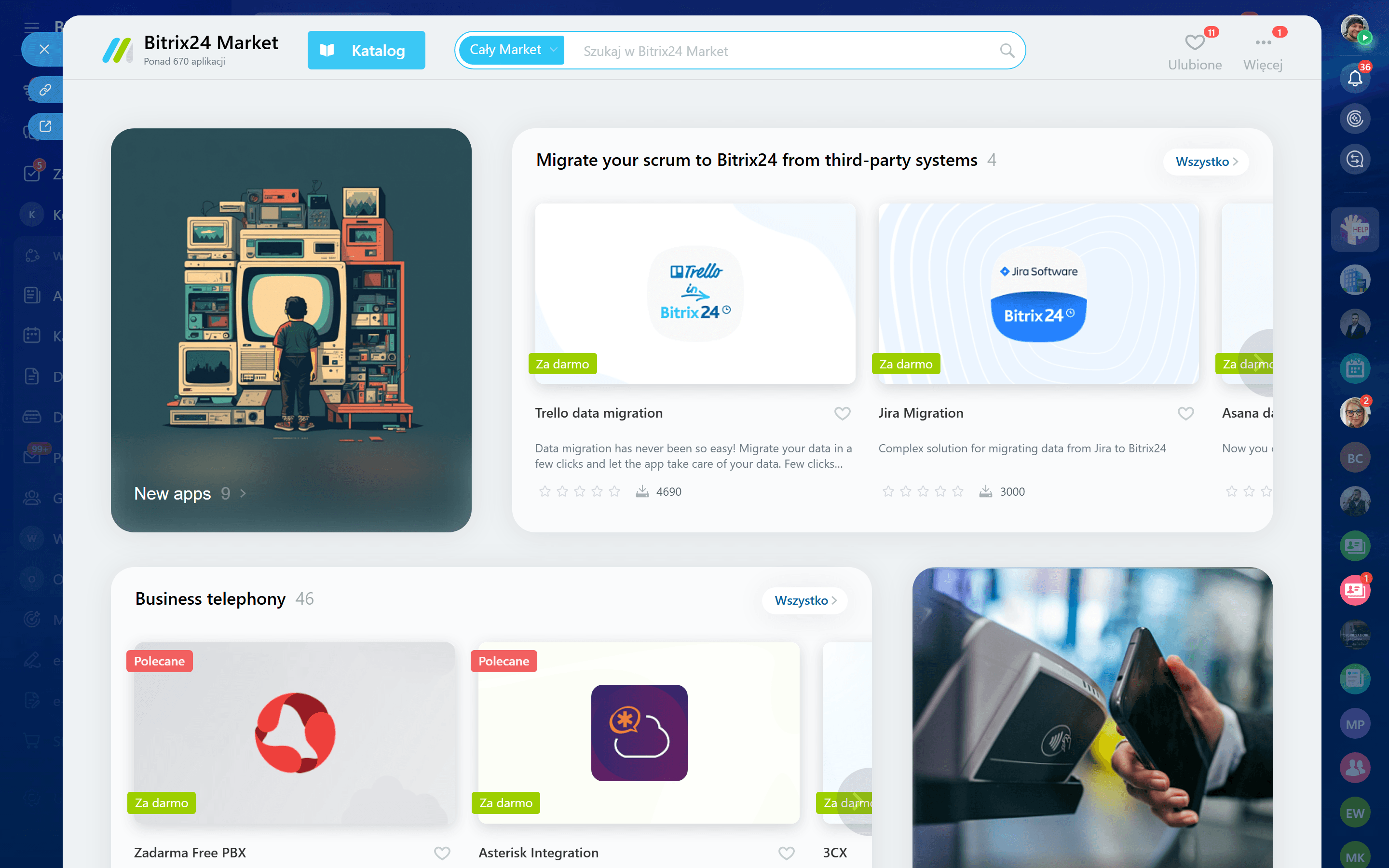
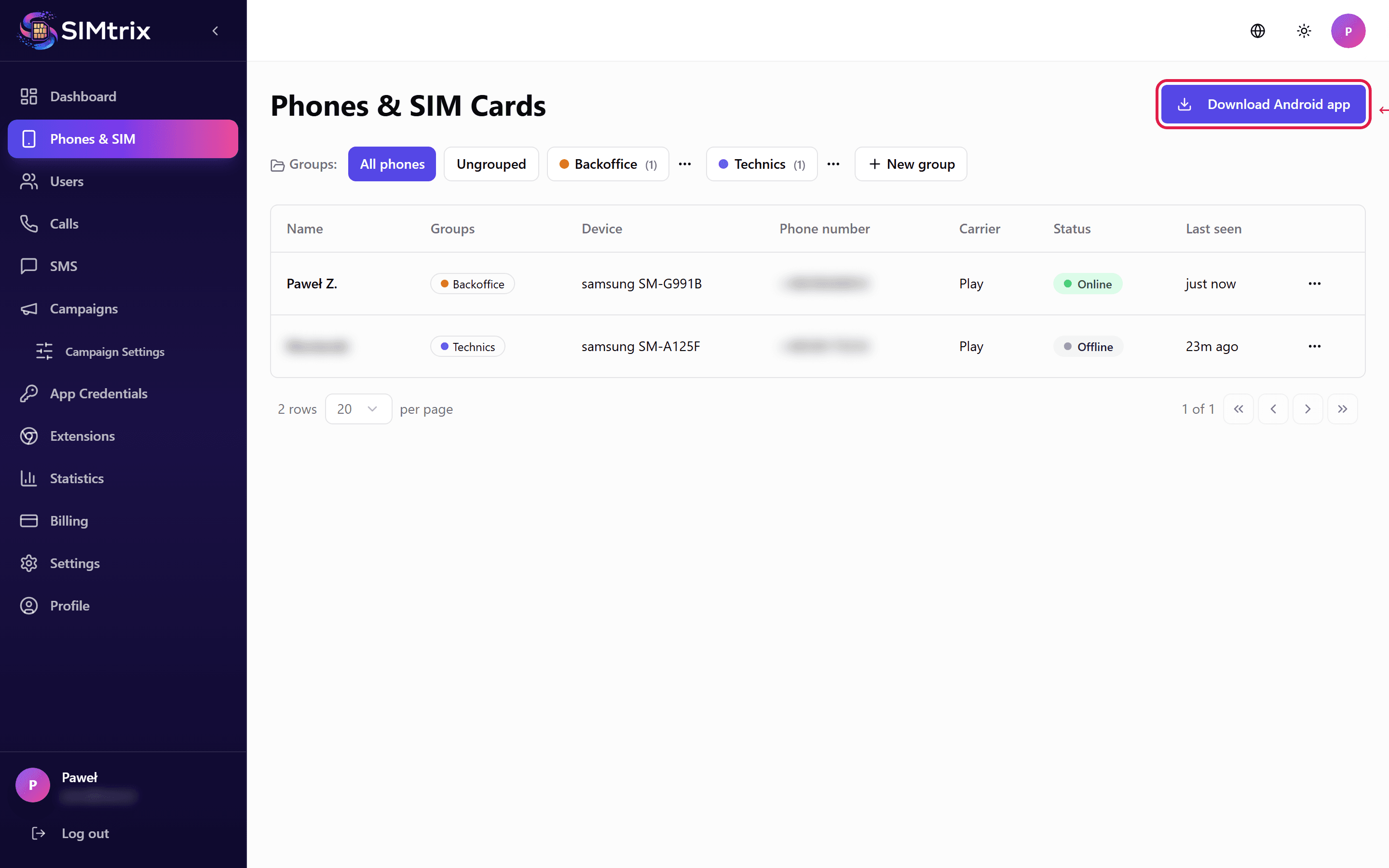
Download the SIMtrix Bridge APK from your dashboard (Phones section). Install it on the Android phone that has the SIM card you want to use. Grant all requested permissions (Phone, SMS, Microphone, Overlay, Notifications). Log in with your SIMtrix credentials and select your Bitrix24 account.
You may need to enable "Install from unknown sources" in your Android settings since the app is distributed directly, not via Play Store.
Make your first call
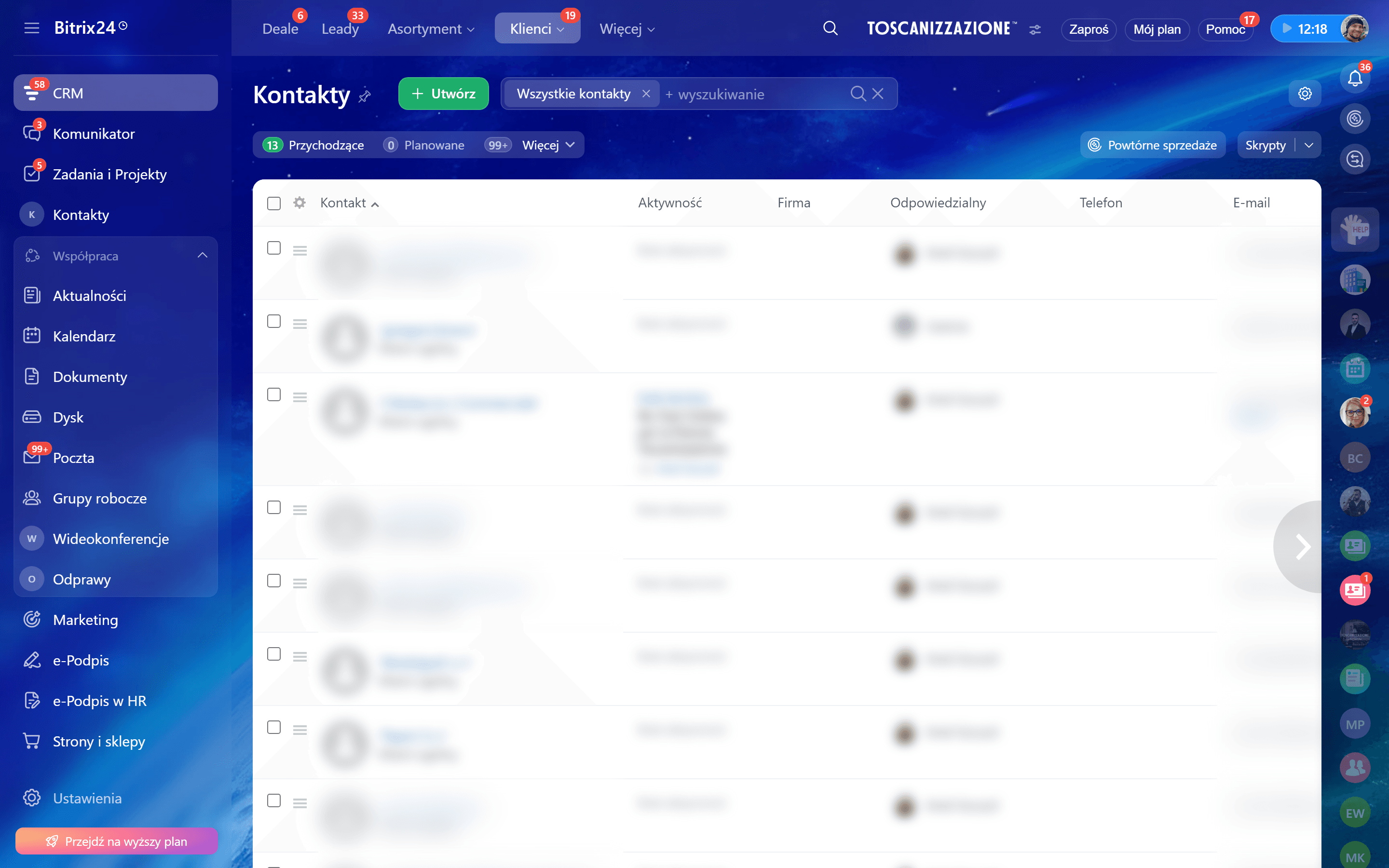
Go to any contact or deal in Bitrix24 and click the phone number. SIMtrix will route the call to your Android phone, which will dial the number using your physical SIM card. The call will be automatically logged in the Bitrix24 CRM timeline.
Ensure your Android phone has a stable internet connection and the SIMtrix Bridge app is running in the background.