

Download and Install the App
Prerequisites
- A SIMtrix account (register at simtrix.app)
- An Android phone running Android 8.0 or higher
- An active SIM card in the phone
- Internet connection on the phone
Download the APK
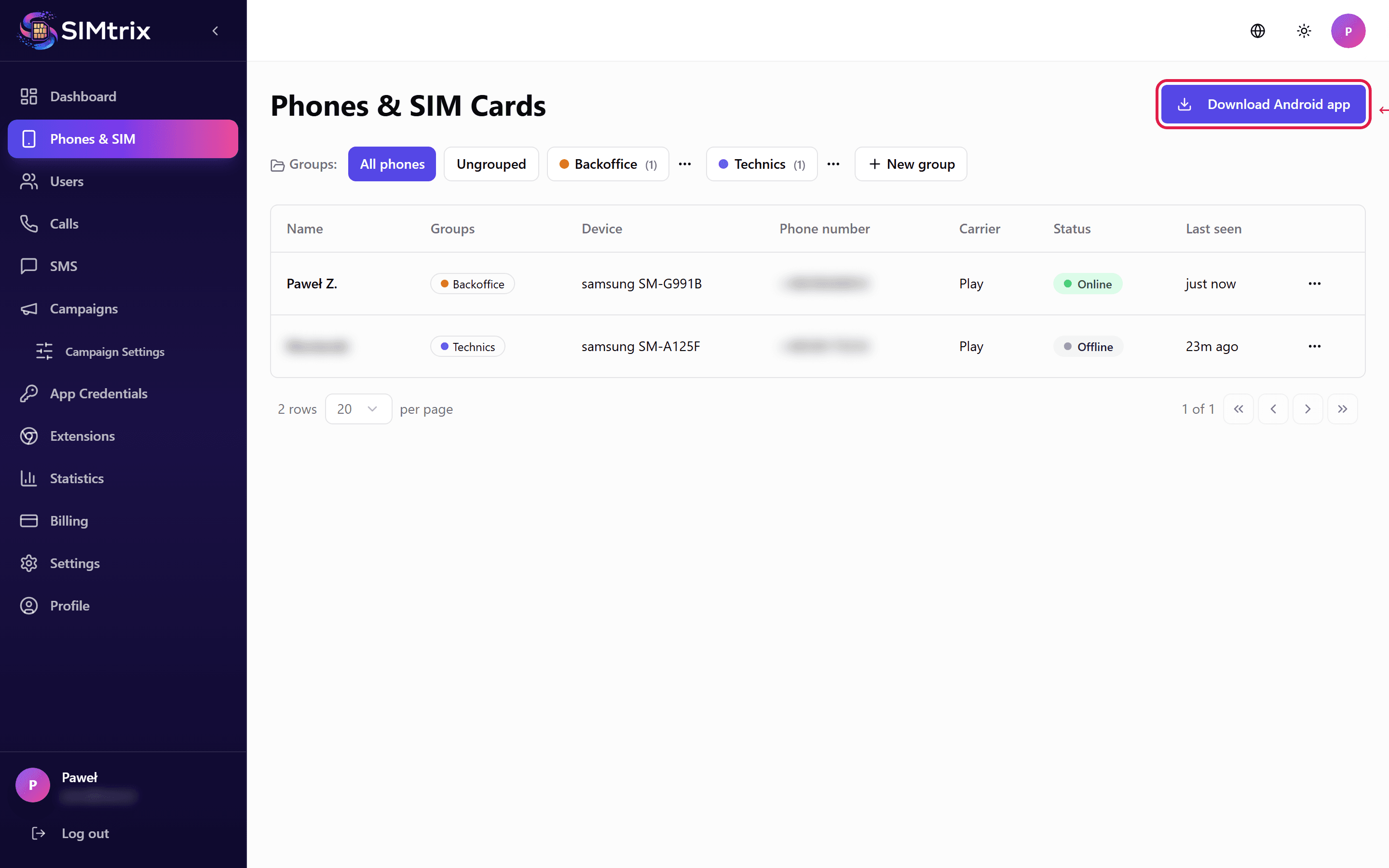
Log in to your SIMtrix dashboard at simtrix.app. Navigate to the Phones section. Click the "Download APK" button to download the SIMtrix Bridge app. Alternatively, you can download it directly from simtrix.app/download/SIMtrix-Bridge.apk.
Download the APK directly on the Android phone where you want to install it. If you download on a computer, transfer the file to your phone.
Enable unknown sources
On your Android phone, go to Settings > Security (or Settings > Apps > Special access). Enable "Install unknown apps" for your browser or file manager. On newer Android versions, you will be prompted automatically when you try to open the APK file.
The exact location of this setting varies by Android version and phone manufacturer. On Samsung: Settings > Biometrics and Security > Install unknown apps. On Xiaomi: Settings > Privacy > Unknown sources.
Install the APK
Open the downloaded SIMtrix-Bridge.apk file on your phone. Tap "Install" when prompted. The installation takes a few seconds. Once complete, tap "Open" to launch the app.
Verify installation
After installation, the SIMtrix Bridge app icon appears in your app drawer. Open the app — you should see the login screen. The app is now ready for configuration.
If your phone blocks the installation, make sure you have enabled "Install from unknown sources" for the correct app (the browser you used to download, or your file manager).