Install from Bitrix24 Marketplace
Prerequisites
- A Bitrix24 cloud account with administrator access
- A SIMtrix account (or you can create one during installation)
Open Bitrix24 Market
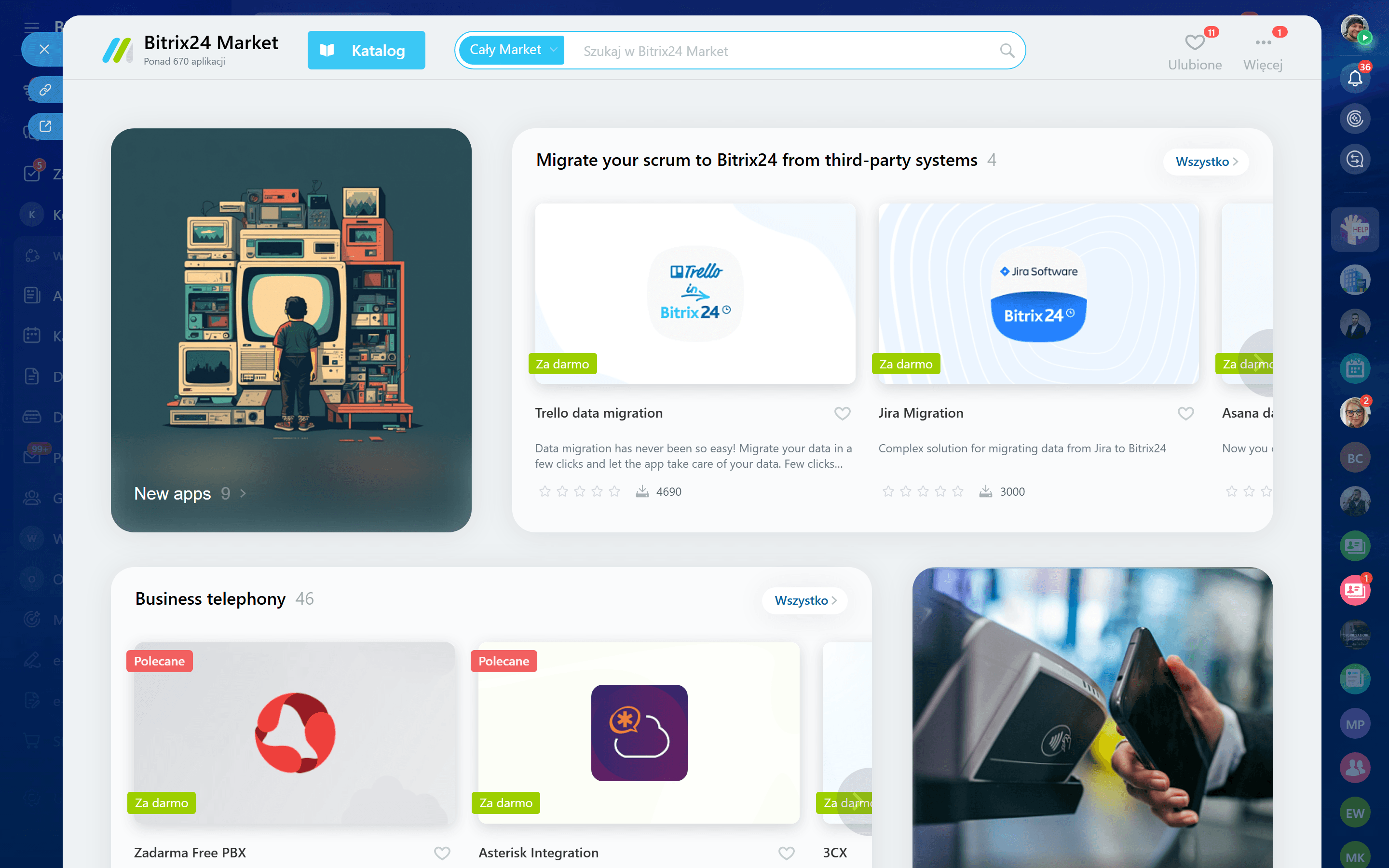
Log in to your Bitrix24 portal as an administrator. Click on "Market" in the left sidebar (or navigate to your-portal.bitrix24.com/market/).
You must have administrator privileges in Bitrix24 to install marketplace applications.
Search for SIMtrix
In the Marketplace search bar, type "SIMtrix". You should see "SIMtrix — Call & SMS by Your Android Phone SIM Card" in the results. Click on it to open the application page.
Install the application
Click the "Install" button. Bitrix24 will show a list of permissions that SIMtrix requires (CRM access, telephony, user data). Review the permissions and click "Install" to confirm.
SIMtrix needs these permissions to register calls in the CRM, read contact phone numbers, log SMS on timelines, and manage telephony settings.
Authorize the connection
After installation, you will be redirected to the SIMtrix authorization page. If you already have a SIMtrix account, log in. If not, you can create one. This links your Bitrix24 portal to your SIMtrix account via OAuth.
Verify the installation
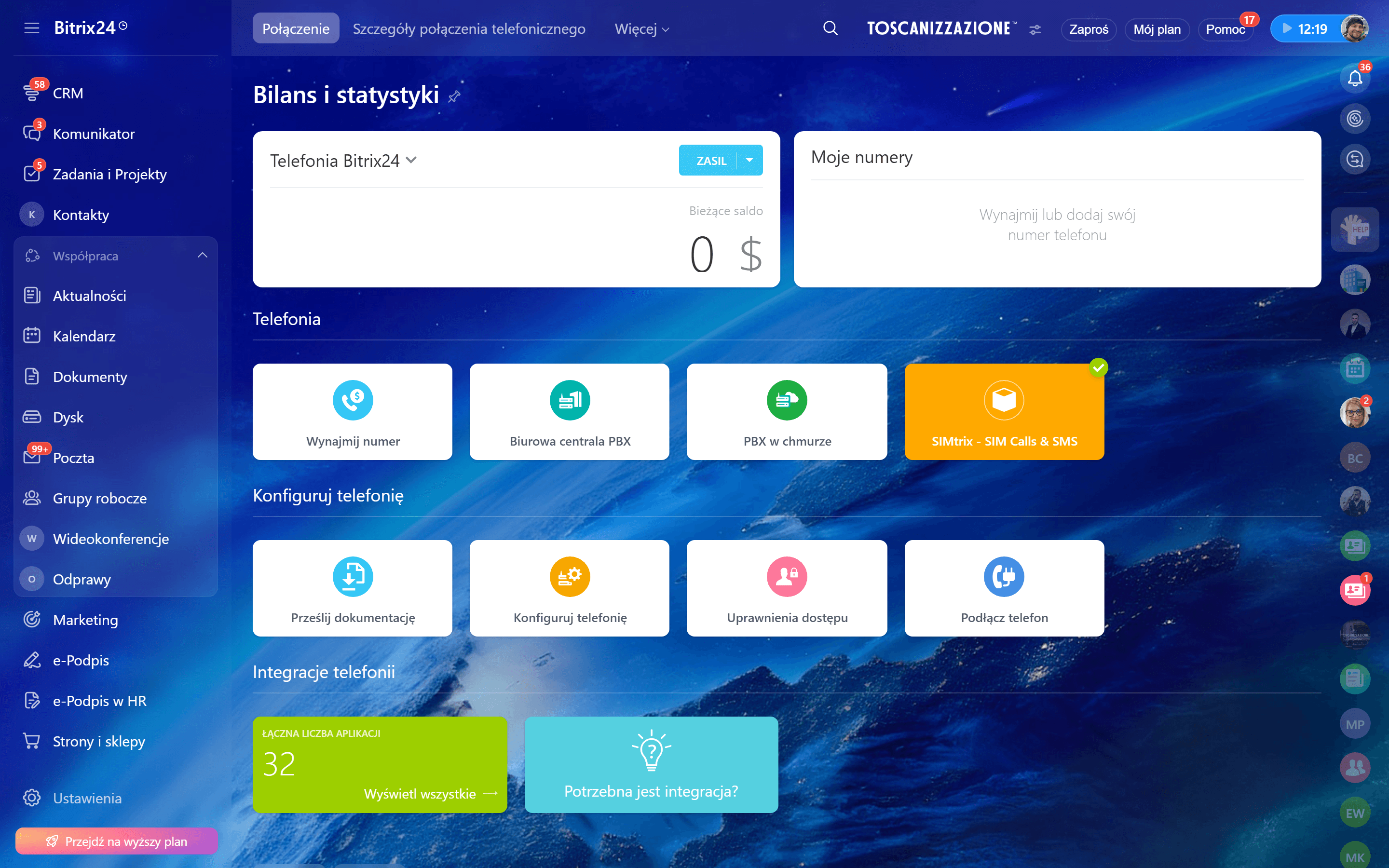
Go back to your Bitrix24 portal. Navigate to Telephony settings — you should see SIMtrix listed as an available telephony provider. In the SIMtrix dashboard, your Bitrix24 portal should now appear in the Settings section.