

Log In and Set Up the App
Prerequisites
- SIMtrix Bridge app installed on your phone
- All required permissions granted
- A SIMtrix account with at least one Bitrix24 portal connected
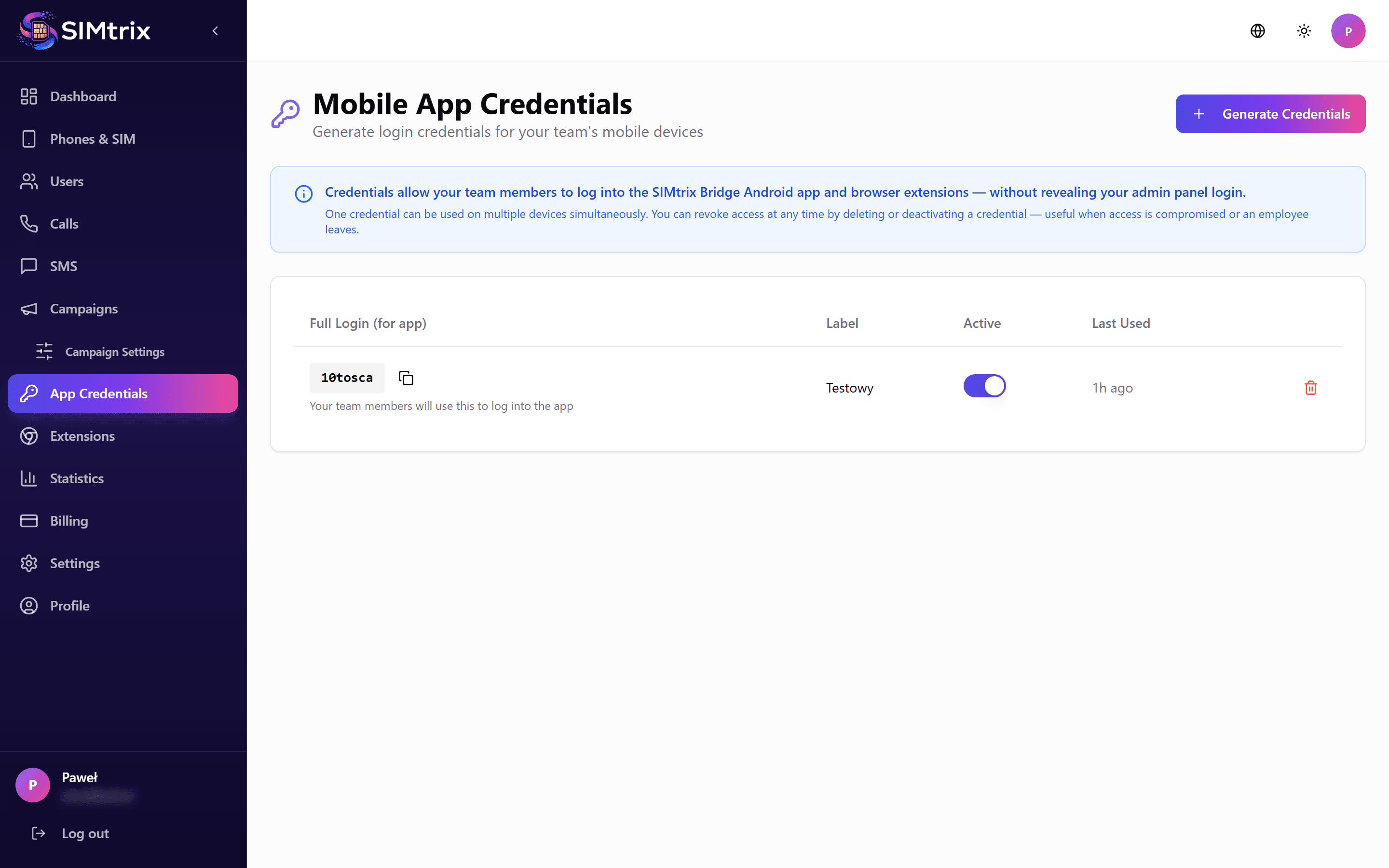
Find your mobile credentials
In your SIMtrix dashboard, go to the Phones section. You will see your mobile login credentials displayed there — an email and auto-generated password. These are specifically for the Android app and may differ from your dashboard login.
The mobile credentials are generated automatically when you register. You can view them anytime from the dashboard.
Enter credentials in the app
Open the SIMtrix Bridge app on your phone. Enter the email and password from your dashboard. Tap "Login". The app will authenticate with the SIMtrix server.
Select your Bitrix24 account
After logging in, the app shows available Bitrix24 accounts (portals) linked to your SIMtrix account. Select the account you want this phone to connect to. If you only have one portal, it will be selected automatically.
Select Caller ID
Under your selected Bitrix24 account, choose which SIM card identity to use. This determines which phone number appears in Bitrix24 as the caller ID. If your phone has dual SIM, you will see both numbers listed.
Verify connection
After setup, the app will show a green connection indicator. This means it has successfully established a real-time link with the SIMtrix server and is ready to receive commands from Bitrix24.
If the indicator shows red, check your internet connection and ensure the permissions from the previous setup step are all granted.