

Configure Features Per User
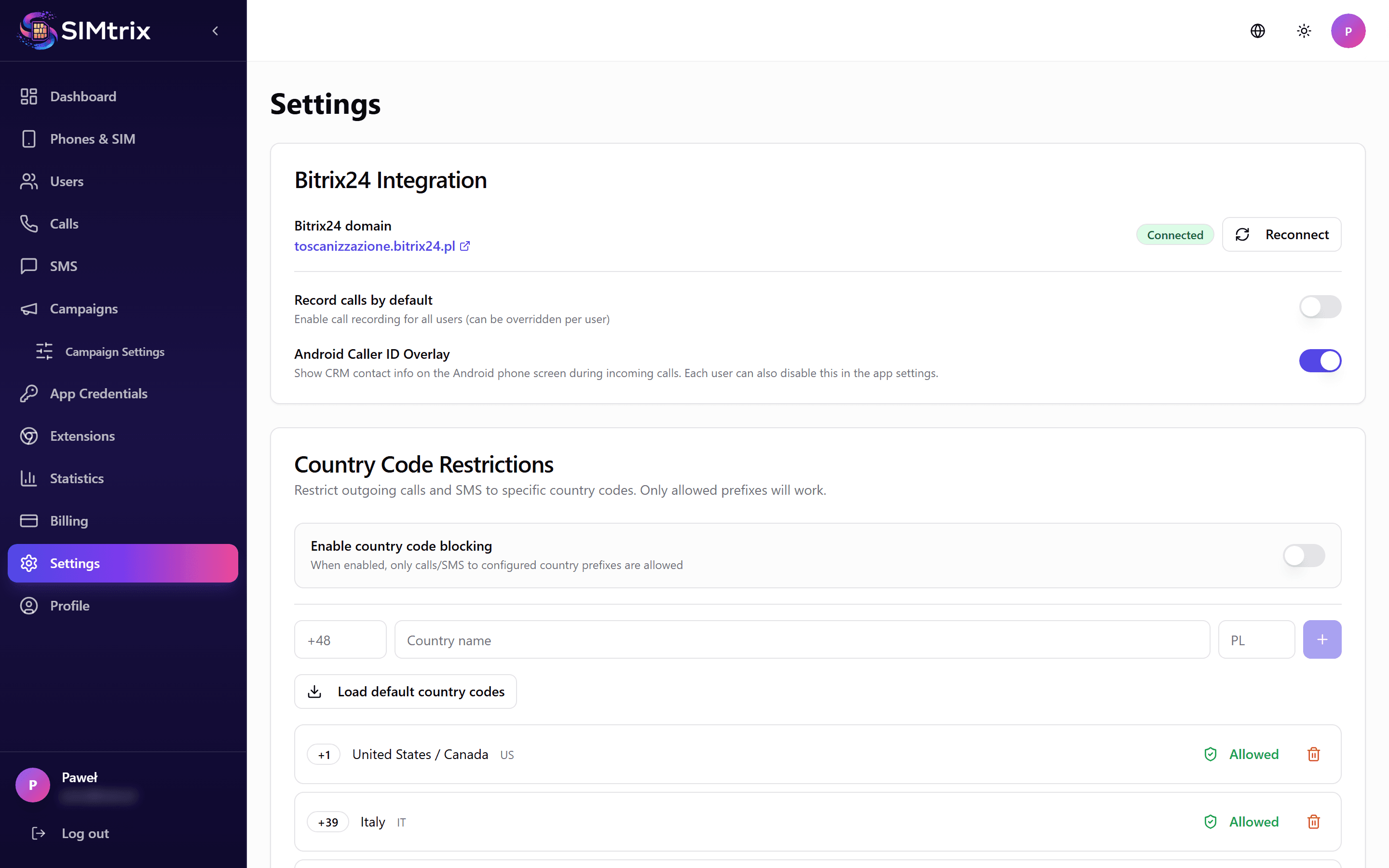
Open user configuration
In the SIMtrix dashboard, go to Settings or Users section. Click on the user you want to configure. The feature configuration panel shows all available options.
Select feature set
Choose which features this user has access to: Calls only — the user can make and receive calls but not SMS. SMS only — the user can send and receive SMS but not calls. Both — full access to calls and SMS. The available options depend on your subscription plan.
Configure call recording
Toggle call recording on or off for this user. When enabled, all calls made or received through SIMtrix will be recorded and uploaded to Bitrix24. The recording appears on the contact timeline. This requires the Record plan.
Call recording availability depends on both the admin setting here and the user toggle in the Android app. Both must be enabled for recording to work.
Set country code restrictions
Enable country code filtering to prevent calls and SMS to international numbers. Select which country codes are allowed. This is useful to prevent accidental international charges. Available on Reach and Record plans.
Save configuration
Click "Save" to apply the changes. The new configuration is pushed to the Android app in real-time. The user does not need to restart the app.