

Create an SMS Campaign
Prerequisites
- Reach or Record subscription plan
- Android phone online and connected
- SMS permission granted
- Contact list prepared in Bitrix24
Navigate to Campaigns
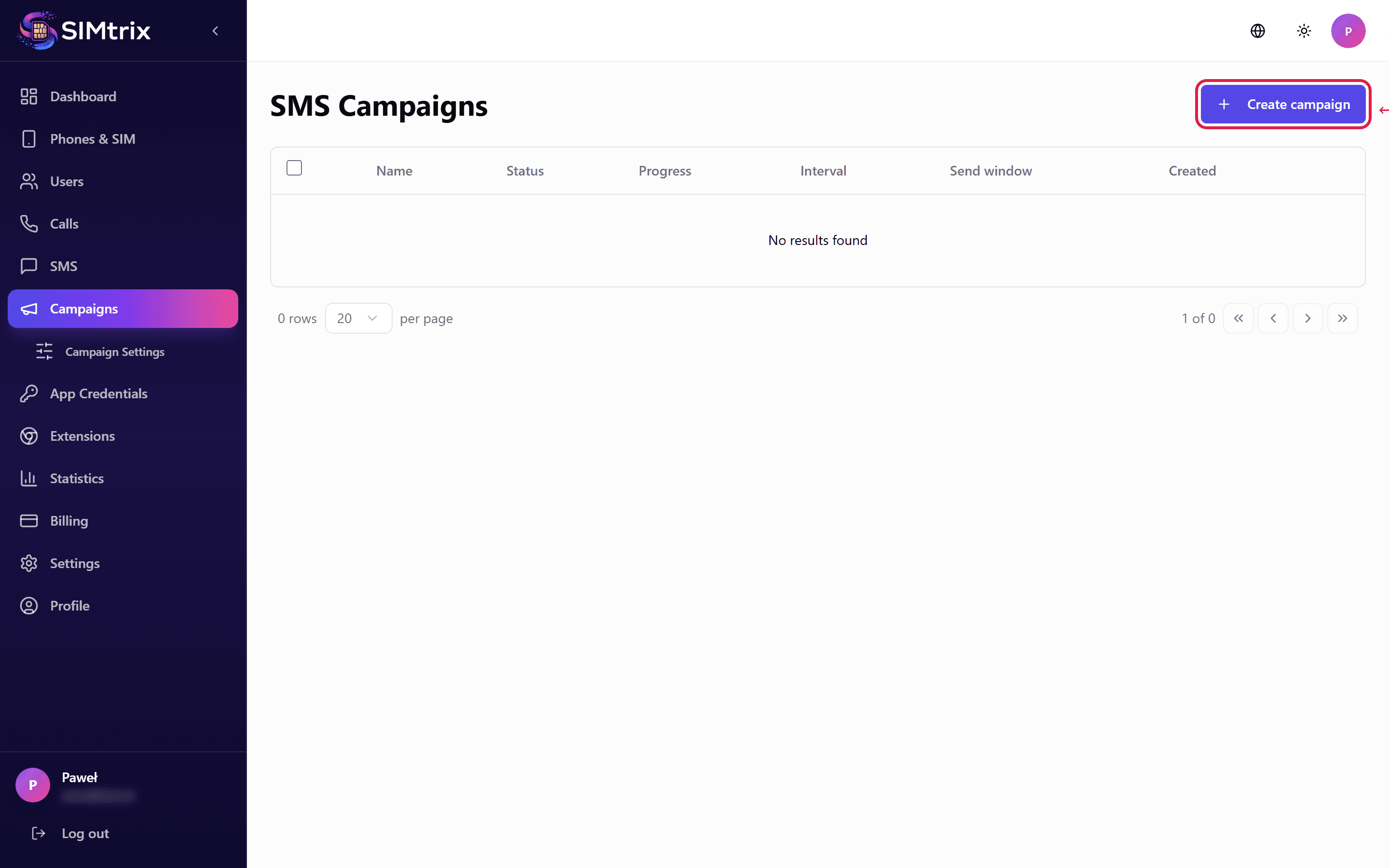
In your SIMtrix dashboard, click "Campaigns" in the left sidebar. Click "Create Campaign" to start a new SMS campaign.
Name your campaign
Give your campaign a descriptive name (e.g., "March Promo 2026" or "Appointment Reminders"). This helps you identify campaigns in the dashboard and reporting.
Select recipients
Choose which contacts will receive the SMS. You can select contacts from Bitrix24 CRM segments, specific deals, or import a phone number list. Each recipient must have a valid phone number.
Always ensure you have permission to message your contacts. Unsolicited bulk SMS may violate local regulations and your carrier terms of service.
Compose the message
Write your SMS message. You can use template variables like {name}, {company}, and {deal} to personalize each message. Preview the message to see how variables will be replaced for specific contacts.
Configure sending schedule
Set the interval between messages (minimum 35 seconds recommended to avoid carrier blocking). Define the time window during which messages should be sent (e.g., 9 AM to 6 PM). The campaign respects these settings to avoid sending messages at inappropriate hours.
Launch the campaign
Review all settings and click "Start Campaign". Messages are queued on the SIMtrix server and sent one by one through your Android phone at the configured interval. You can monitor progress in real-time from the campaign dashboard.