

Chrome Extension Setup
Prerequisites
- Google Chrome browser (version 90 or newer)
- A SIMtrix account with at least one connected phone
- Reach or Record subscription plan
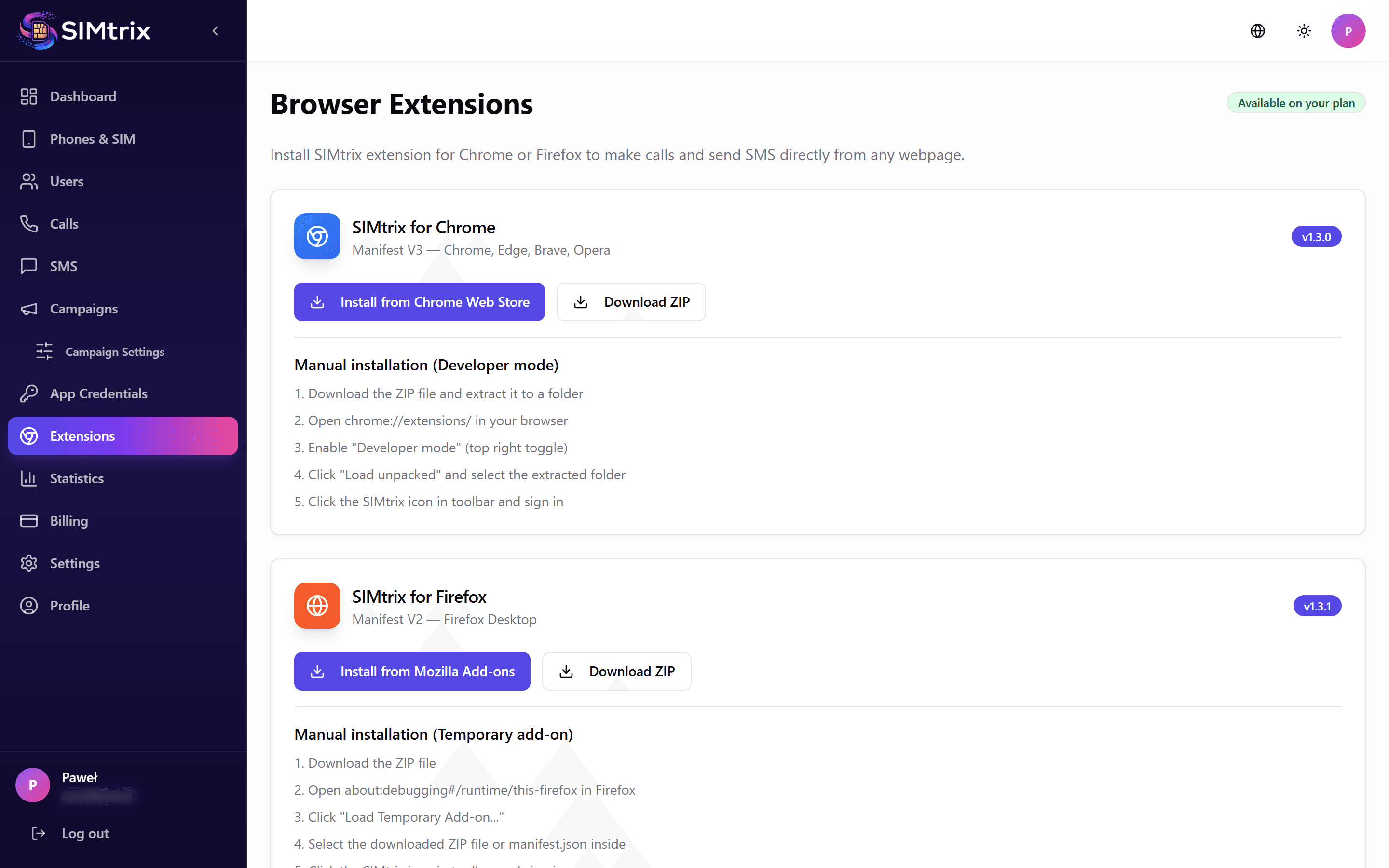
Install from Chrome Web Store
Open the Chrome Web Store and search for "SIMtrix" or use the direct link from your SIMtrix dashboard (Extensions section). Click "Add to Chrome" and confirm the installation when prompted.
Pin the extension
After installation, click the puzzle piece icon in the Chrome toolbar. Find SIMtrix in the extensions list and click the pin icon to make it always visible in your toolbar.
Log in
Click the SIMtrix icon in your Chrome toolbar. The extension popup opens. Enter your SIMtrix email and password (the same credentials you use for the dashboard). Click "Login".
Select your phone
After logging in, the extension shows your available phones. Select the phone/SIM you want to use for click-to-call. The selected phone will receive call commands when you click numbers on websites.
Make sure the selected phone is online and connected. The extension shows the phone status.
Start using click-to-call
Navigate to any website. Phone numbers will be automatically detected and highlighted with a small phone icon. Click the icon (or the number) to initiate a call through your Android phone SIM card.