Make an Outbound Call
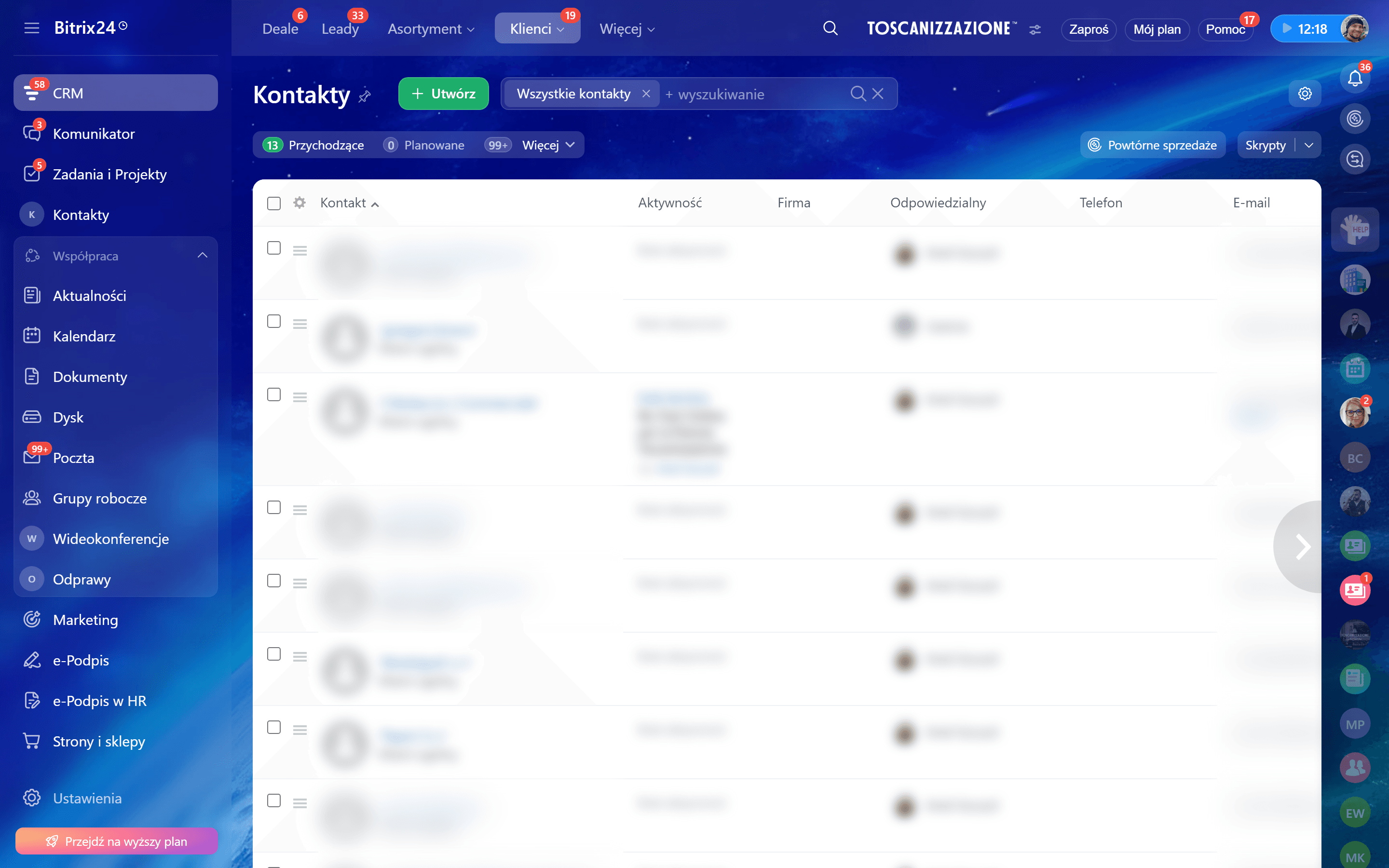
Open a contact, lead, or deal in Bitrix24
Navigate to CRM in your Bitrix24 portal. Open the card of a contact, lead, or deal that has a phone number.
Click the phone number
Click on the phone number displayed on the card. If SIMtrix is set as your default telephony provider, the call will be routed through SIMtrix automatically. You may see a brief "Connecting..." indicator in Bitrix24.
If clicking the number opens a different telephony app, go to Bitrix24 > Telephony > Settings and set SIMtrix as the default provider.
Answer on your Android phone
Your Android phone will start dialing the number within 1-2 seconds. The call is made using your physical SIM card — the recipient sees your real phone number as the caller ID. Handle the call as you normally would.
Call is logged automatically
When the call ends, SIMtrix automatically logs it in Bitrix24. The call activity appears on the contact/deal timeline with: call direction (outbound), duration, timestamp, and recording (if enabled).