Connection Status
Understanding the Status Indicator
The SIMtrix Bridge app displays a connection status indicator. Green means the app has an active real-time connection to the SIMtrix server and is ready to receive commands. Red means the connection is lost — the app cannot receive call or SMS commands from Bitrix24 until the connection is restored.
WebSocket Connection
SIMtrix uses a WebSocket connection as the primary real-time channel. This is a persistent, bidirectional connection between your phone and the SIMtrix server. It allows commands to be delivered instantly (under 1 second). The app automatically reconnects if the WebSocket drops.
FCM Fallback
Firebase Cloud Messaging (FCM) serves as a backup delivery mechanism. If the WebSocket connection drops (for example, during a brief network switch), FCM can still wake the app and deliver commands. This dual-channel approach ensures maximum reliability.
Reconnection Behavior
When the connection drops, SIMtrix Bridge automatically attempts to reconnect using an exponential backoff strategy — it retries frequently at first, then gradually spaces out retries to conserve battery. Once internet is restored, the app typically reconnects within a few seconds.
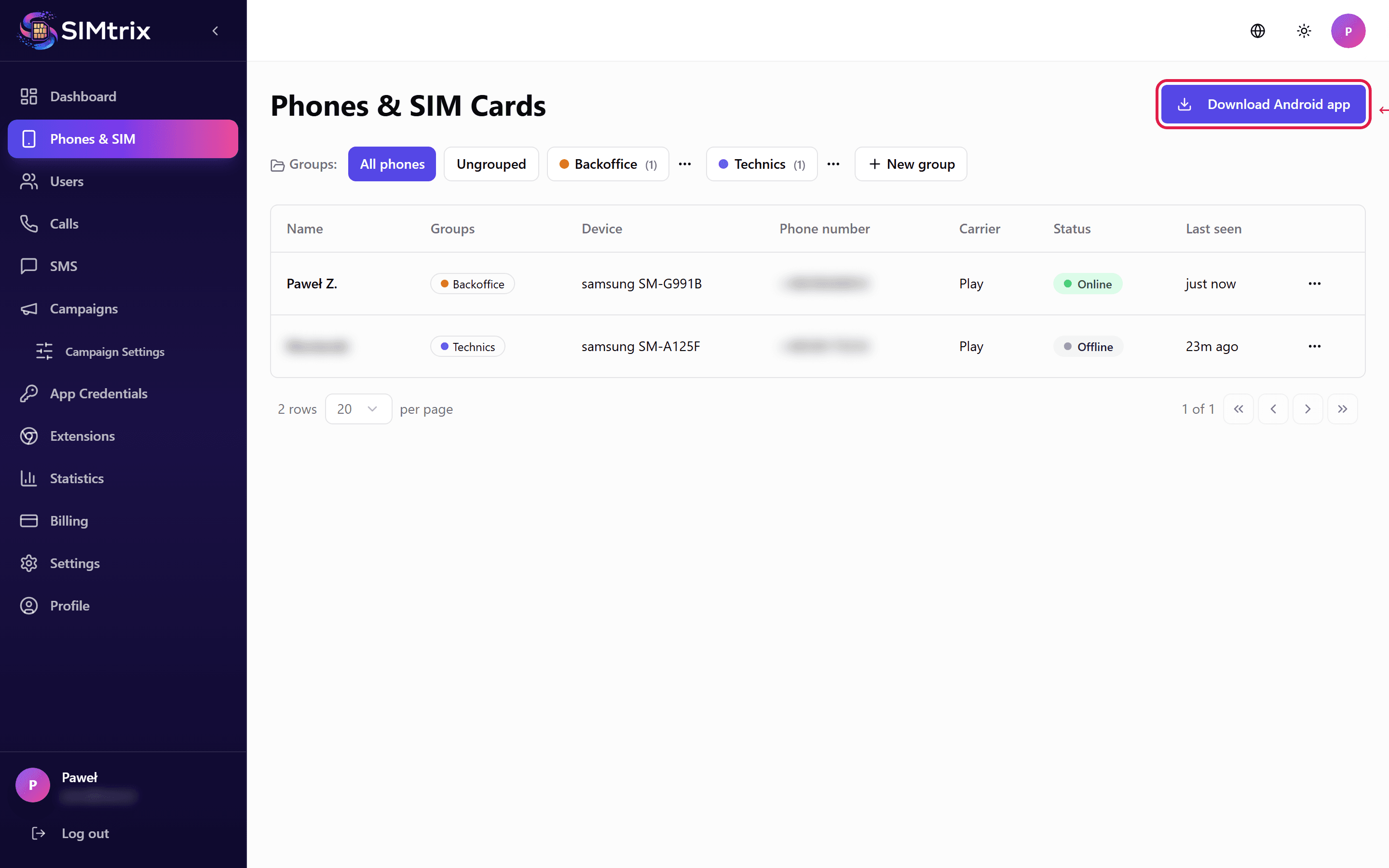
Checking Connection in the Dashboard
Your SIMtrix dashboard also shows the connection status of each phone. In the Phones section, each device shows an "Online" or "Offline" badge. The last-seen timestamp indicates when the phone last communicated with the server.